
How many times have you been at a company, and every day you seem to be getting alerts or notifications for the same resource. Maybe its for high cpu or memory usage or application high response times. Your inbox ends up getting spammed and so you set up a rule to send them to a folder which quickly turns into 500+ unread messages. We’ve all been there.
But what if, amidst all that noise, there was a genuinely critical alert that needed immediate attention—one that could cause application downtime or even a security incident?
To prevent this scenario, we need to effectively narrow the scope of our alerts to ensure that notifications are truly actionable and require attention. By doing so, we can focus on what really matters and avoid missing important alerts.
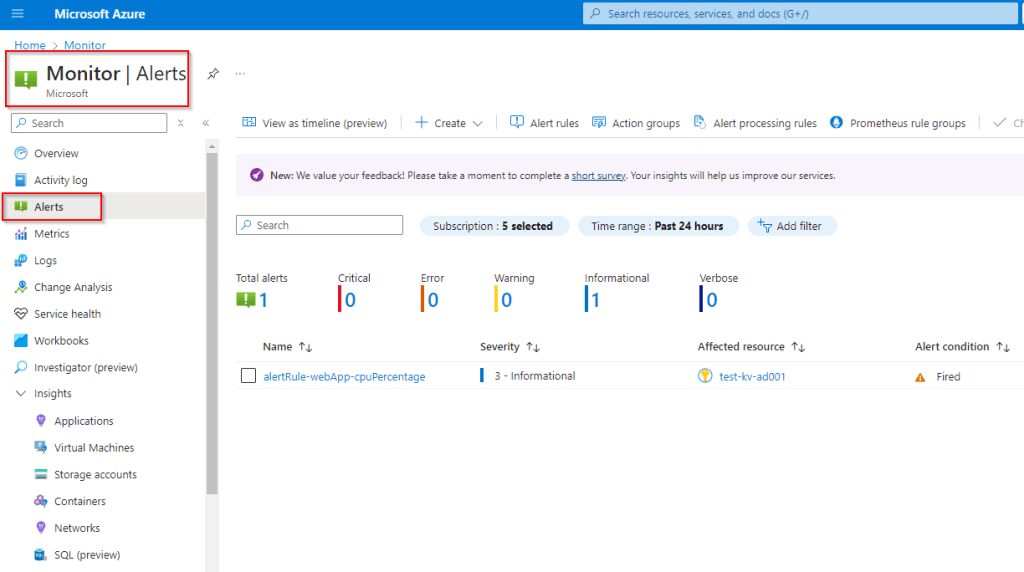
The Challenge of Effective Alerting
I’ve been doing some work around Azure Monitor in the last year, and a key part of that has been setting up application and resource alerts. Below I’ll give a overview on my guidelines for setting up alerts, some best practices that I try and follow, and at the end I’ll provide examples of a few good alerts to start with for some common azure resources.
Setting up alerts in Azure is straightforward, but determining what to alert on can be tricky. Alert on too much, and your notifications become noisy, making it easier to miss important alerts. Alert on too little, and you may miss critical information about your application’s security and availability.
When setting up alerts for an application in Azure for the first time, I struggled to find information on the most useful alerts. Below, I’ll share my experience and recommendations for setting up effective alerts in Azure.
These guidelines provide a general framework for setting up alerts in Azure. They are not a complete solution but should be tailored to your specific environment, application, and needs.
Defining an Alert
Monitoring and alerting enable a system to notify us when it’s broken or about to break. When the system can’t automatically fix itself, we want a human to investigate the alert, determine if there’s a real problem, mitigate the issue, and find the root cause. Unless you’re performing security auditing on narrowly scoped components, you shouldn’t trigger an alert simply because “something seems a bit weird.”
When creating rules for monitoring and alerting, I consider the following items to determine if a specific metric is worth alerting on:
- Actionable Alerts: Every alert received should be actionable. If a response merely requires a robotic action, it shouldn’t be an alert.
- Urgency and Visibility: Does this rule detect an urgent, actionable condition that is actively or imminently user-visible?
- Benign Alerts: Will I ever be able to ignore this alert, knowing it’s benign? When and why will I be able to ignore it, and how can I avoid this scenario?
Metrics or application query data that we want to monitor but don’t necessarily need to alert on can be placed in an Azure dashboard or workbook. This information can then be periodically monitored and actioned when required. If an alert definitely indicates that users are being negatively affected, it’s something we want to alert on.
Understanding and Combating Alert Fatigue
Alert fatigue happens when users become desensitized to alerts due to an overwhelming number of notifications, leading to important alerts being overlooked. This can result in missed critical issues, reduced efficiency, and increased stress among team members.

Causes of Alert Fatigue
- Overly Sensitive Alerting: Too many low-threshold alerts.
- Lack of Prioritization: No clear severity levels.
- Redundant Alerts: Multiple alerts for the same issue.
- Poorly Defined Alerts: Alerts that are not actionable.
Strategies to Combat Alert Fatigue
- Prioritize Alerts: Assign severity levels to distinguish between critical and minor issues.
- Tune Alert Thresholds: Adjust thresholds to reduce noise (e.g., allow a small number of failed connections before alerting).
- Create Actionable Alerts: Ensure alerts provide enough context for effective response.
- Regularly Review Alerts: Periodically refine alert configurations to maintain relevance.
- Use Dashboards: Monitor important metrics without triggering alerts.
Alert Severity Levels
In Azure, severity levels range from Sev 0 (critical) to Sev 4 (verbose). I generally follow these guidelines for assigning severity to an alert:
- Sev 0 – Critical: Indicates an issue that requires immediate attention from the support team, such as a service outage or security breach.
- Sev 1 – Error: Significant problems that may not be immediately critical but still need prompt resolution to prevent escalation.
- Sev 2 – Warning: Highlights potential issues that should be investigated to avoid future problems but are not immediately urgent.
- Sev 3 – Informational: Provides insights and data that can help optimize performance and understand trends but do not require immediate action.
Useful Alerts to Set Up
Below are some alerts I typically set up for common resources in Azure. Note that the severity levels are what I usually use in production environments. For test and lower environments, you may want to lower the severity and determine whether something needs to be alerted on at all.
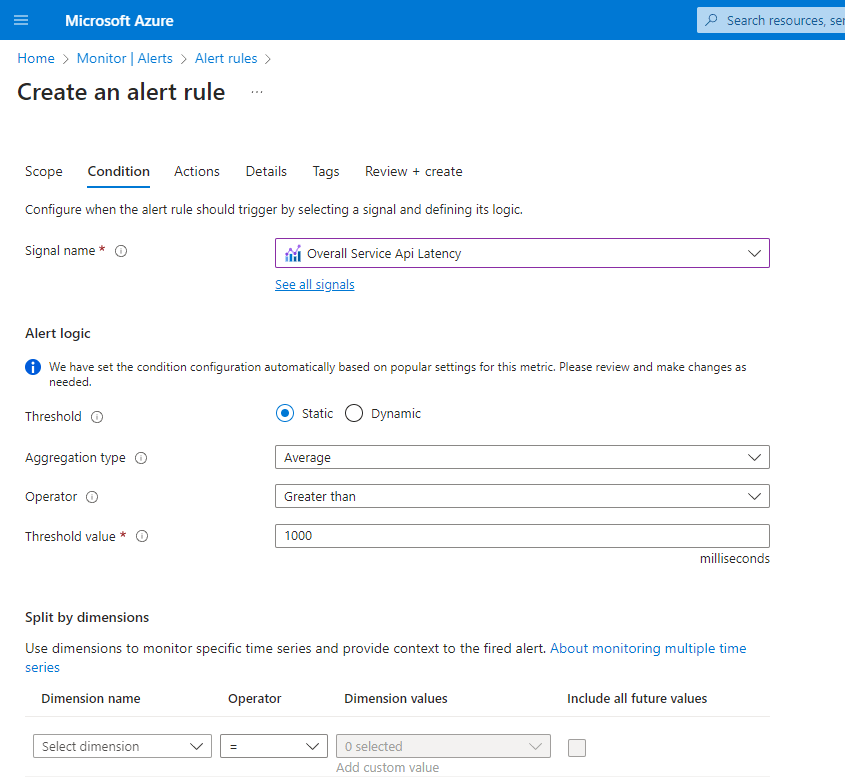
Azure App Services
Name: HTTP 4xx Errors
- Condition: HTTP 4xx > 10 within a 5-minute period
- Severity: Critical
- Description: High rates of 4xx errors can indicate application issues. Adjust the threshold based on the amount of traffic your application receives.
Name: HTTP Server Errors
- Condition: HTTP 5xx > 0 within a 5-minute period
- Severity: Critical
- Description: HTTP server errors indicate a bug or issue within your application. Ideally, there should be zero HTTP server errors in a running application, so any occurrence should be investigated immediately.
Name: Response Time
- Condition: Average HTTP Response Time > 5 seconds within a 5-minute period
- Severity: Error
- Description: Slow response times can impact user experience and should be investigated promptly.
Name: CPU Percentage
- Condition: Average CPU Percentage > 80% within a 5-minute period
- Severity: Warning
- Description: This metric monitors the compute usage of your app service. If triggered, investigate the CPU usage to determine the cause, which could be related to high traffic or transient issues.
Name: Memory Percentage
- Condition: Average Memory Percentage > 80% within a 5-minute period
- Severity: Warning
- Description: Similar to CPU usage, this metric should be investigated to determine the cause. A threshold of 80% is generally recommended.
Azure SQL Database
Name: High DTU Utilization
- Condition: Average DTU Percentage > 80% within a 5-minute period
- Severity: Critical
- Description: High DTU utilization can indicate that the database is under heavy load, which may affect performance. Investigate the cause and consider scaling up or optimizing queries.
Name: Failed Connections – System Errors
- Condition: Connection failed count > 5 within a 5-minute period
- Severity: Critical
- Description: A small number of failed connections can be normal due to transient issues, but a higher count may indicate a more serious problem. Investigate the cause of the failed connections to ensure the database is accessible and operational.
Azure Virtual Machines
Name: High CPU Usage
- Condition: Average CPU Percentage > 85% within a 5-minute period
- Severity: Warning
- Description: High CPU usage can indicate that the VM is under heavy load, which may affect performance. Investigate the cause and consider scaling up or optimizing the workload.
Name: High Memory Usage
- Condition: Average Memory Percentage > 85% within a 5-minute period
- Severity: Warning
- Description: High memory usage can lead to performance degradation or application crashes. Investigate the cause and consider scaling up or optimizing the workload.
Name: Disk Space Usage
- Condition: Free disk space < 10% within a 5-minute period
- Severity: Critical
- Description: Low disk space can cause applications to fail or perform poorly. Investigate and free up space or increase disk size.
Name: Network In/Out
- Condition: Network In/Out > 80% of network bandwidth within a 5-minute period
- Severity: Warning
- Description: High network usage can indicate potential bottlenecks or unusual activity. Investigate the cause and consider optimizing network traffic or increasing bandwidth.


Leave a Reply