
Today, I’m focusing on Azure Firewall, a service that often causes confusion—especially when compared to Azure Web Application Firewall (WAF).
Both have “firewall” in their names, but they serve completely different purposes in cloud security architecture. WAF is commonly deployed to protect web applications from threats like SQL injection and cross-site scripting (Layer 7). Azure Firewall, on the other hand, secures your entire network, filling in gaps that WAF can’t cover (Layer 3-4).
Despite its importance, Azure Firewall often gets overlooked by teams who focus solely on web application security. In this post, I’ll explain what Azure Firewall does, how it complements WAF, and walk you through integrating it into your cloud security setup.
What Are Layers in the Open System Interconnection (OSI) Model
When talking about network security, you may see the terms Layer 7 and Layers 3-4 being thrown around. These layers are referring to the Open Systems Interconnection (OSI) model. This is a framework that breaks down network communication into seven distinct layers, each with specific responsibilities, ranging from physical hardware to high level application interactions, and interacts with the layers directly above and below it. The layers are as follows.
- Physical Layer: Hardware transmission/transmission over the physical medium (cables, switches).
- Data Link Layer: Node-to-node connections (local communication between devices on the network)
- Network Layer: Routing between networks (IP addresses, routing between devices on different networks).
- Transport Layer: End to end connections (TCP/UDP, ports, reliability of data arrival).
- Session Layer: Establishes and maintains communication sessions.
- Presentation Layer: Data translation and encryption (handles tasks like data encryption, compression, and conversion)
- Application Layer: Human-computer interaction. Manages user interfaces and services (HTTPS/HTTPS, FTP, SMTP). This application layer ensures data is presented in a way the user and application understands.
For relation to Azure security services, the two services we are focusing on operate at different layers of the OSI model:
| Azure Service | OSI Layer | Primary Function |
| Azure Firewall | Layer 3-4 | IP filtering, port control, network segmentation, routing. |
| Azure WAF | Layer 7 | HTTP inspection, web attack prevention, content filtering. |
Azure Firewall provides network-level protection with some application awareness, while Azure WAF specialises in deep HTTP/HTTPS inspection to protect web applications from specific attacks like SQL injection.
Think of Azure Firewall as a security guard controlling who enters the building, while WAF is a specialised inspector checking what visitors are actually doing inside.
Azure WAF vs Azure Firewall
Azure Firewall is a network security service that provides centralized protection for your entire cloud environment, managing traffic flows at the network level. In contrast, Azure Web Application Firewall (WAF) is specifically designed to protect web applications by detecting and blocking common web application threats. Below is a table comparison outlining the key differences between the two:
| Azure Firewall | Azure Web Application Firewall (WAF) | |
| Protection Layer | Network layer (3-4) with limited application layer | Application layer (7) only. |
| Primary Purpose | Network traffic filtering | Web Application protection against common exploits |
| Traffic Direction | Inbound/Outbound (north-south) and internal (east-west) | Primarily inbound |
| Integration Point | Virtual Network | App Gateway, Front Door, CDN |
| Filtering Basis | IP addresses, ports, FQDNs | HTTP/HTTPS requests, payloads |
| Protection Mechanisms | Network isolation, traffic control | OWASP rule protection, Rate Limiting, SQL Injection protection, Bot protection |
| Rule Types | Network, Application, NAT rules | OWASP rule sets, BOT Manager, custom rules |
| Firewall Type | Stateful Firewall | Application-level firewall |
| Threat Intelligence | IP/Domain-based filtering with Microsoft Threat Intelligence | Signature-based attack detection with rule sets and bot protection |
Stateful vs Stateless Firewall
The key difference between stateful and stateless firewalls lies in how they manage network traffic. A stateless firewall makes decisions based solely on predefined rules for individual packets independently, without considering the context of the connection. For example, it treats every packet as an isolated entity, checking if it matches the rule set but without tracking whether it’s part of an established session.
While this simplicity makes them faster and less resource-intensive, it also limits their ability to manage complex traffic scenarios.
In contrast, a stateful firewall tracks the state of active connections, analyzing packets in the context of the ongoing communication. By analyzing attributes like source and destination IP addresses, port numbers, and connection states, they provide dynamic and intelligent filtering. They rely on a session table to track active connections and their statuses, enabling more sophisticated traffic control. For example, if a packet arrives at the firewall claiming to be part of an established connection, but the state table does not have any record of such connection, the firewall can discard the packet as it is likely an attempt to bypass security measures. This makes stateful firewalls generally more secure due to their ability to monitor and inspect packets based on the context of the connection. This is especially suitable for environments that require granular control over network traffic, such as enterprise networks or those handling sensitive data
Imagine an organization with an on-premises network connected to Azure through a VPN gateway. Azure Firewall, a stateful firewall, ensures that traffic between the on-premises network and Azure resources is secure. If an employee initiates a request to access a file hosted in Azure Storage, Azure Firewall tracks this session, allowing only the expected response from Azure Storage while blocking any unsolicited packets. This dynamic tracking helps prevent many spoofing and session hijacking attempts which is critical for network security.
Implementation Example
Below I’ll provide an example of how you would implement an Azure Firewall and the different of firewall rules you can add to your firewall policy.
Azure Firewall deploy into it’s own subnet (typically in a hub virtual network). The subnet needs at least a /26 size to allow scalability. You can only deploy one Azure Firewall per virtual network. Azure Firewall is built around VMSS – when you deploy it; it deploys a VMSS in the backend – and based on the workload that is happening it can scale instances accordingly.
Azure Firewall itself is actually quite a simple resource; most of the action happens in a Firewall Policy. Warning: Azure Firewall is quite pricy; so if you are doing this for POC or (blog post) then make sure you delete your Firewall instance right after you’ve completed whatever you need to do – don’t just leave it hanging around. In a Firewall Policy, you can have three different rule types.
- DNAT (Destination Network Address Translation) – These are processed first (before any other types – no matter the priority). These rules enable external traffic to reach internal resources in your private networks.
Core Concepts:- Translates inbound internet traffic (public IPs) to private IP addresses.
- Parameters include source address, destination address, ports, and translated address/port.
- For instance, you can publish an internal web server to the internet using a NAT rule.
- Network Rules:
- Operates at network layer (layer 3-4)
- These rules control non-HTTP/S traffic between subnets or virtual networks.
- Parameters include source and destination addresses, protocols (TCP, UDP, ICMP, or Any), and ports.
- Used for east-west traffic communication between subnets.
- Key difference: DNAT rules translate addresses to enable access, while network rules filter traffic without changing addresses.
- Application Rules:
- Operates at Layer 7 (application layer).
- These rules manage HTTP/S traffic based on domain names or URLs
- They are useful for controlling web access, such as allowing or blocking specific websites.
- Based on FQDN (domain names).
- URL filtering and web categories are available in premium tier.
Azure Firewall processes these rules in a specific order: DNAT rules first, followed by network rules, and then application rules.
Implementation:
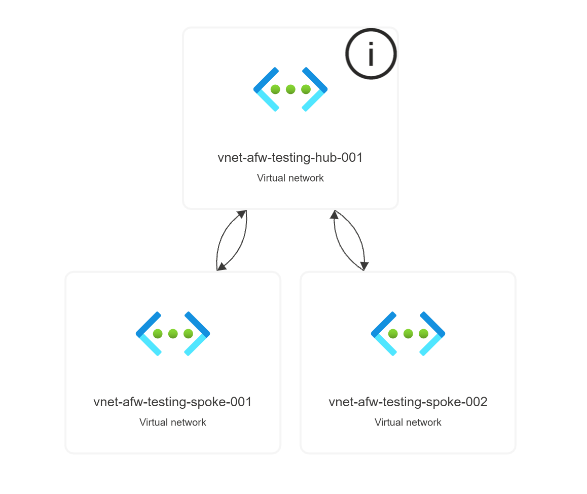
- Lets start by first creating 3 vnets, a hub vnet and two spoke vnets. Ensure each vnet does not nave any overlapping ip address ranges.
- Next, lets create a subnet in the hub vnet called ‘AzureFirewallManagementSubnet’ with at least a /26. Set the Subnet purpose to Firewall Management (forced tunneling). This is required in order to deploy the firewall into this vnet.
- AzureFirewallSubnet – This is where the firewall processes and inspects network traffic. It handles inbound and outbound filtering, NAT rules, and threat intelligence.
- AzureFirewallManagementSubnet – This subnet is dedicated to firewall management traffic. It ensures that operational traffic (such as updates and logging) is routed separately from customer traffic.
- Now we need to create some peerings between the three vnets. To setup a sample hub/spoke architecture; let’s peer both the Spoke Vnets to the hub Vnet. This gives us the following networking architecture:
- Now lets deploy the azure firewall. A weird tidbit is that the Azure Firewall must be deployed into the same resource group as the vnet that we are deploying into.
- You will also need to deploy two public ip with the following properties:
- SKU: Standard
- Assignment: Static
- I will touch on some of the setting when creating the firewall below:
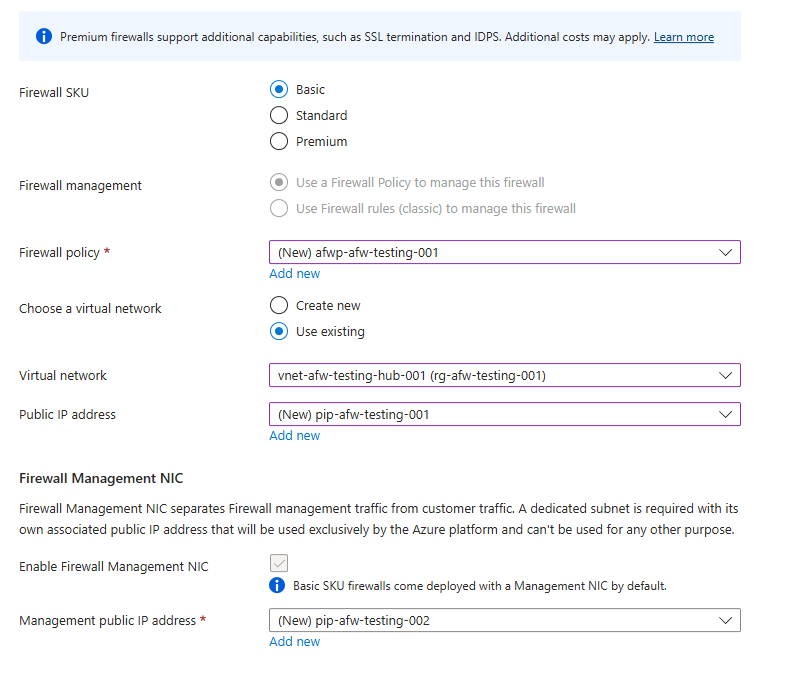
- Firewall SKU: You can find a full breakdown of the capabilities of the different SKU’s in the Microsoft documentation here. Because this is a POC and we are continuing with the theme of me being a
cheap bastardfrugal engineer; I am going to deploy the Basic SKU Firewall. For production applications; the Standard tier should meet basically all your needs. If you are dealing with highly sensitive applications that requires more advanced features like TLS inspection or URL filtering; then those are available on the Premium tier. - Firewall management: Here create a new policy with the tier you want. I have gone basic. A full comparison can be found here.
- Virtual Network: For the virtual network; choose our Hub Vnet we created earlier. This hub vnet need to have the following subnets:
- AzureFirewallSubnet – This is where the firewall processes and inspects network traffic. It handles inbound and outbound filtering, NAT rules, and threat intelligence.
- AzureFirewallManagementSubnet – This subnet is dedicated to firewall management traffic. It ensures that operational traffic (such as updates and logging) is routed separately from customer traffic.
- Public IP Address: Create a PIP used for the Azure Firewall with the following properties:
- SKU: Standard
- Assignment: Static
- Firewall Management NIC: This is enabled by default on the Basic SKU; and requires a Public IP address with the following skus:
- SKU: Standard
- Assignment: Static
The Firewall Management NIC is a separate network interface that handles firewall management traffic independently from customer traffic. It ensures that operational tasks like updates, logging, and monitoring are processed without interfering with regular firewall operations. On the Basic tier, the Management NIC is always enabled because it simplifies firewall operations and ensures that management traffic is properly routed. Higher-tier firewalls (Standard and Premium) allow manual configuration of the Management NIC, but Basic-tier firewalls automatically include it.
If you deploy an Azure Firewall Standard/Premium without enabling the Firewall Management NIC, the firewall will still function, but you may encounter limitations, especially if you configure Forced Tunneling or certain upcoming features that require management traffic separation. Essentially without the Management NIC, all firewall traffic (including operational tasks like updates and logging) flows through the AzureFirewallSubnet. This can lead to disruptions if forced tunneling is enabled and the virtual appliance is not configured correctly to allow this management traffic.
- Firewall SKU: You can find a full breakdown of the capabilities of the different SKU’s in the Microsoft documentation here. Because this is a POC and we are continuing with the theme of me being a
- With that; our configuration is complete. Lets deploy this and continue with our deep dive. I want to test this using a simple Virtual Machine and App Service scenario. We will deploy a Virtual Machine in Spoke 1 and the App service in spoke 2 and see how network traffic flows between the two whilst we setup the different routes and firewall policies. My app service has public network access disabled; and is using private endpoints so all traffic should be flowing from my internal vnet. Ensure the private dns zone of your app service has a virtual network link to all of your spoke vnets.
- Scenario: Try and access the app service from the VM with no configuration.
- Result: 403
- Scenario – Network rule: Let’s set up a route that routes all traffic from the vm through my new azure firewall.
Firstly, I need to retrieve the private IP of my deployed Azure Firewall. You can grab it from the resource here: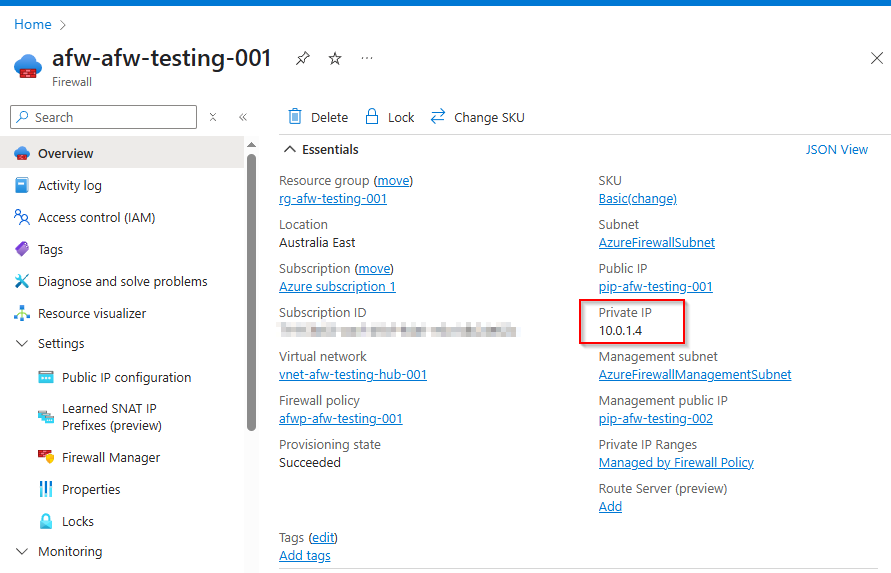
Next I have setup a route table with the following route: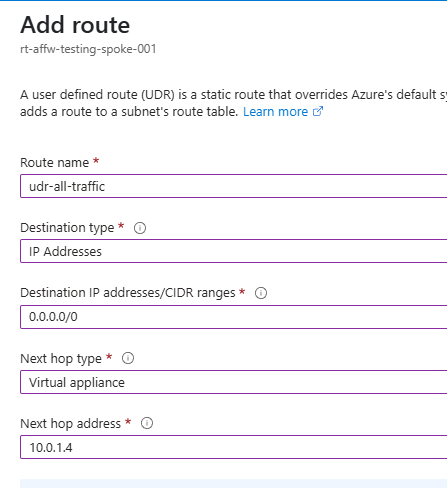
This will force tunnel all traffic (private or internet bound) through to my Azure Firewall. You can use 0.0.0.0/0 to force tunnel all traffic to your firewall.
After creating this route table, it needs to be associated to the subnet where you have deployed the virtual machine into.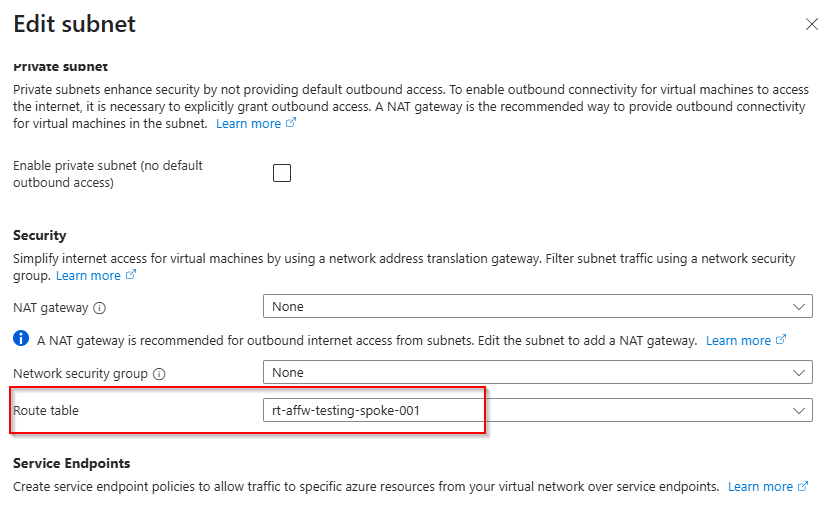
Now let’s try to access the app service from my VM again.
Result: 403
Why does this occur? Well becuase we have not setup an azure firewall policy to allow connectivity between the two spoke vnets. let’s set this up:
Because I’m allowing subnet to subnet traffic; let’s set up the following rule in the firewall policy: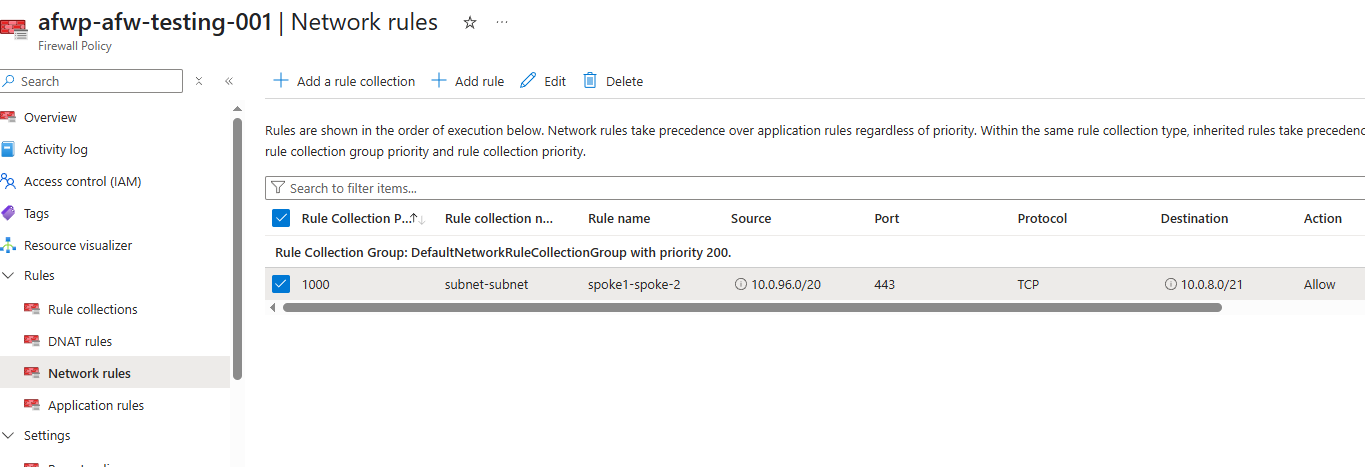
Where Source is my VNet address space where my Virtual Machine is deployed; and Destination is the VNet address space of my App Service. Now when we try:
Voila! It works. (Excuse the placeholder app service site).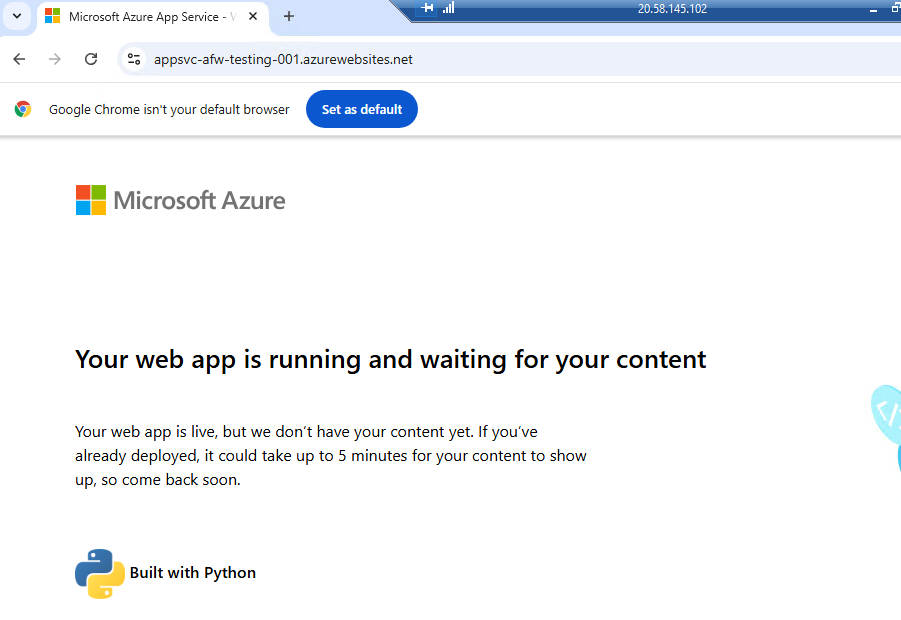
Wrapping up
There’s often confusion between Azure Firewall and Azure Web Application Firewall (WAF), with many people mistaking one for the other or questioning why both are necessary in a secure architecture. With the explanations and example provided above, you should now have a clearer understanding of how these services differ and how, when used together, they can significantly strengthen the overall security posture of your cloud environment.

 Alex D'Antico Tech
Leave a comment