
Full Azure DevOps solution can be found here.
If you’re a developer using Azure DevOps as your DevOps tool of choice, chances are you’ve encountered situations where setting up a self-hosted agent became necessary. Microsoft-hosted agents work well for many straightforward use cases, but as your pipelines grow more complex and the resources you interact with become more secure, you might face challenges that demand a different solution.
A common scenario requiring self-hosted agents is ensuring network connectivity to private network-protected resources in Azure. Examples include accessing the data plane of private network-protected services like Azure App Services, Key Vault, and more. A self-hosted agent is essential because Azure DevOps is not listed as a trusted service by Microsoft, meaning this setting cannot be configured on the relevant resources for seamless access.
Previously, you would deploy your own Virtual Machine or VMSS into the required virtual network and install the Azure DevOps pipeline agent on it. More recently, containerized solutions such as Azure Container Apps have emerged as hosts for pipeline agents. While functional, these solutions often come with limitations in my experience, including but not limited to:
- VMs/VMSS
- Have to manage OS updates and infrastructure.
- Overhead of management of virtual machines
- Container Apps
- Do not support Windows based dockerfiles (at the time of writing this)
- Cannot run Docker commands from within the running pipeline agent container.
- Initial setup overhead.
Introducing Azure Managed DevOps Pools—a new, fully managed service from Azure. In this solution, the virtual machines or containers powering the agents reside within a Microsoft Azure subscription rather than your own infrastructure. This setup allows you to deploy agents directly into your company’s virtual network, granting access to endpoints that were previously inaccessible to Microsoft-hosted agents.
This looks like a great and much wanted solution, as it will finally remove the overhead of configuring and managing these self hosted agents and allow developers to easily spin up a managed agent pool to use for interaction with their Azure resources whilst also keeping them secure.
While I typically share these resources on GitHub, given that we’re deploying an Azure DevOps Agent Pool, I assume you are using Azure DevOps as your development tool. Therefore, I’ll make it available there.
Components
- Azure Dev Center
In the context of Azure Managed DevOps Pools, a dev center is a centralised management hub in Azure that acts as the parent centralised hub Azure resource that enables organizations to manage and provision development environments.
- Dev Center Project
A logical container within an Azure Dev Center that organises specific development workloads with team-based access controls and environment definitions. - Managed DevOps Pool
This is the Microsoft-maintained build infrastructure that contains your scalable and pre-configured agent pools.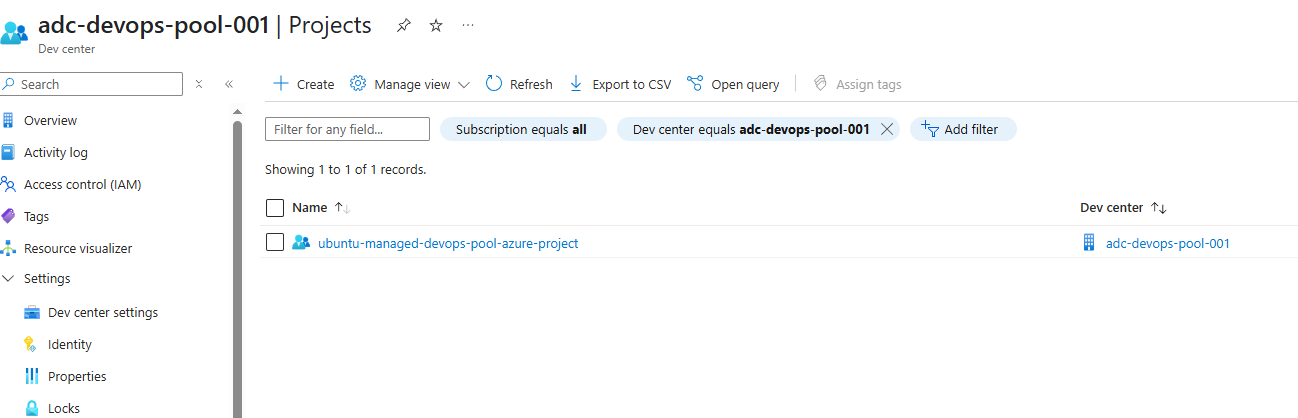
Pre-requisites
- Connect your Azure DevOps organization to the same Microsoft Entra directory as the Azure subscription where the Managed DevOps Pool resource will be deployed.
- Register the following resource providers in your Azure Subscription:
Microsoft.DevOpsInfrastructureMicrosoft.DevCenter
- Permissions:
Create an App Registration in Azure that we will use for the Azure DevOps service connection for deploying the relevant resources to Azure. Give the app registration the following permissions.
Note: You will need to add the App Registration to your Azure DevOps organization as a User before assigning it the below role.
| Service | Scope | Role |
| Azure | Subscription | Owner |
| Azure DevOps | Organisation | Project Collection Administrator |
My Solution
What is deployed
My solution, available as a public Azure DevOps project here, provides a fully automated deployment of a managed DevOps pool. It includes the following components:
- An Azure resource group with the following resources:
- Azure Dev Center
- Azure Dev Center project
- Managed DevOps Pool
- Virtual Network & Subnet- with the relevant permissions
The Managed DevOps pool will be deployed into the virtual network created.
- An Azure DevOps Agent Pool within the organisation and project specified in the bicep parameters file.
Configuration
The configuration to update for your environment can be found in the src/bicep/main.bicepparam file.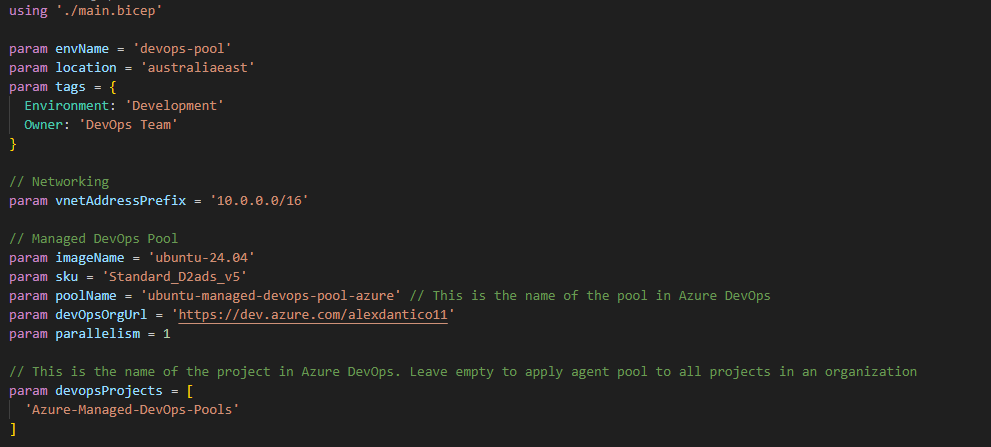
You can adjust the parameters to suit your specific needs or leave them as they are. Additionally, the devops-pool.bicep file includes default parameters such as maximumConcurrency, agentProfileKind, and osDiskStorageAccountType, which you can modify as needed.
You’ll need to update the devOpsOrgUrl and the devopsProjects array with your organization’s specific URL and project list.
Finally, make sure to update the pipeline.yml file with the service connection we set up during the prerequisites step. This service connection should be of the ARM type and must have owner permissions on the Azure subscription where the deployment will take place.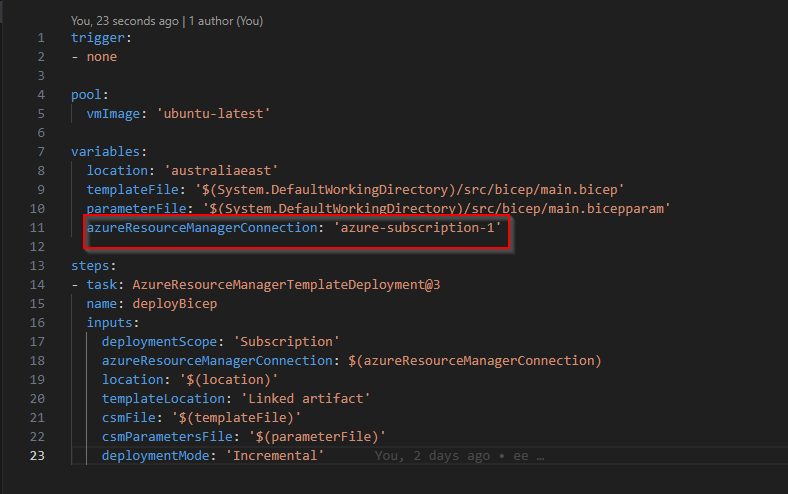
Other than that, it should be good to go. Yeet the pipeline and let’s view the results.
Testing the solution
If configured correctly, after running the pipeline everything should have completed successfully: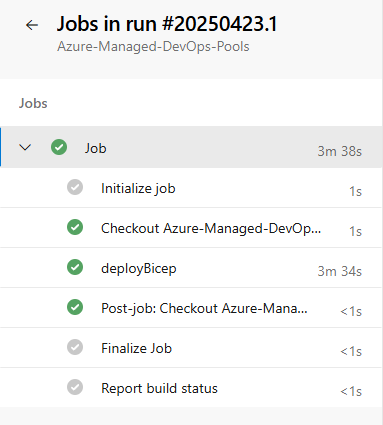
We should see the following resource group and resources deployed into Azure: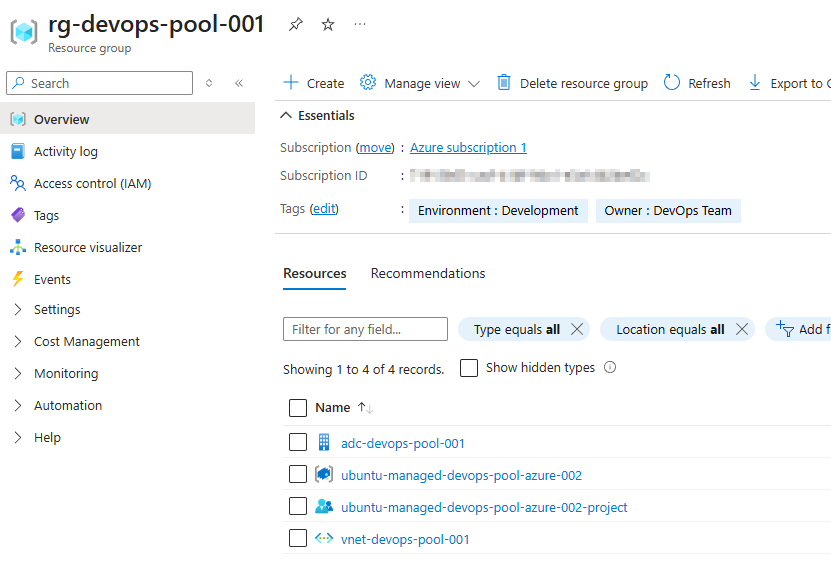
You should also see your new Agent Pool in the Azure DevOps project that you specified in the bicep params file: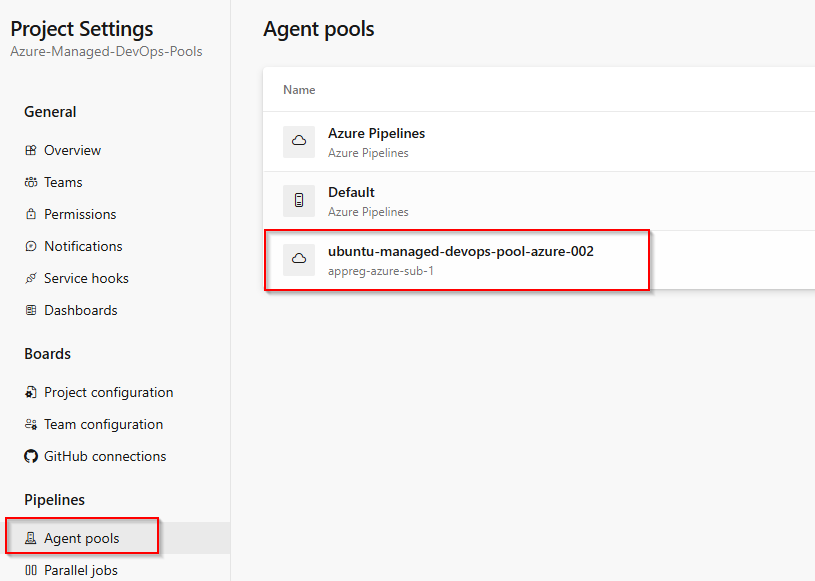
I want to test this solution by:
- Running a pipeline on my new managed devops pool.
- Running a pipeline to prove I have network connectivity to private network resources in Azure.
I created a test pipeline that utilizes my managed DevOps agent pool to execute tasks and retrieve a secret from Key Vault without public access. Initially, I tested the pipeline with the Key Vault configured for no public access and without being added to the virtual network where my managed DevOps pool is deployed.
As expected it fails because we do not have line of sight to this Key Vault. I try testing again, but this time I add a private endpoint to my Key Vault and add it to a subnet in the same Virtual network as my Managed DevOps pool: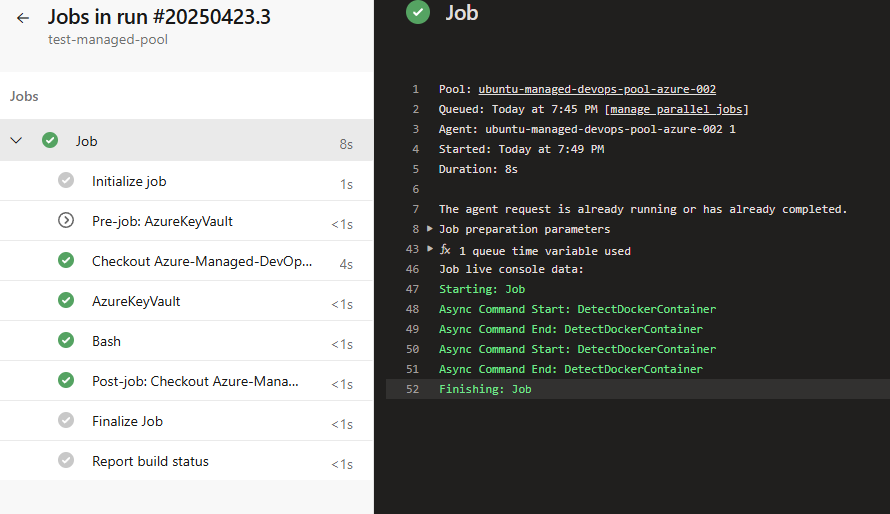
Success!
Monitoring and Diagnostic Logs
There are two methods of monitoring your managed devops pool instance. Firstly is via Azure Metrics in the Managed Devops Pool resource. Here you can view metrics such as Allocated count, Ready (Number of Azure DevOps Agents present that are prepared to accept a job) and Provisioned. A full list of metrics can be found here.
To view diagnostic data, set up a diagnostic setting and enable the Resource Provisioning Logs category.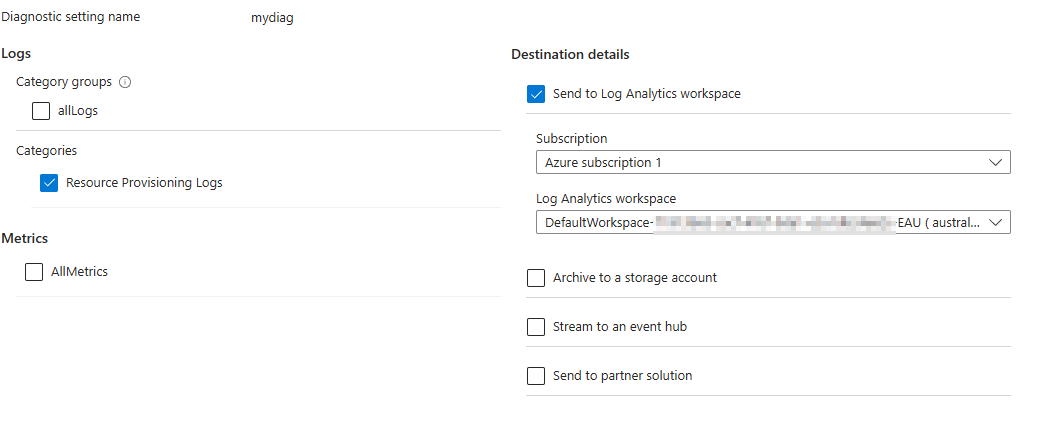
To view these logs, you can query the table MDPResourceLog. This provides detailed information about the status of your agents, such as the number of agents currently running jobs and the count of standby agents that are online.
You can also find the same information from the Agents tab in the portal here:
In my experience, the only monitoring source I found somewhat useful was the metrics, which displayed pipeline jobs being queued when my pipeline runs were inactive. This at least offered visibility into the traffic coming through. Other than that, I didn’t find either monitoring source particularly effective for diagnosing issues, though they are available if needed.
Issues experienced
- The logged in user does not have Manage permissions in the Azure DevOps organization.
This issue occurs because the App Reg or User that you are using to deploy these resources does not have the correct permissions in Azure DevOps. Your logged in user must haveProject Collection Administratoron the relevant Azure DevOps organisation.
IF YOU HAVE ADDED THIS PERMISSION AND IT IS STILL NOT WORKING:
Wait 24 hours and try again. For some reason I experienced this issue where I had all the right permissions but kept getting this error. I lost an entire night trying to figure out the issue but eventually gave up. I tried the next day and ran my pipeline again (completely unchanged) and it worked perfectly. There must be some permissions syncing propagation delay between Azure Entra Id and Azure DevOps, so if you hit this issue; just be patient. - Delays in pipeline startup
This issue I do not have a fix for. Microsoft have some troubleshooting steps here to try and solve this issue but none seemed to resolve the root cause.
They do suggest adding stateful pools with grace periods to keep agents online (rather than them spinning up every time) but this sort of defeats the purpose of having completely stateless agents whilst also incurring more costs.
Conclusion
This is an exciting new tool, though it’s evident that it’s still in the early stages of its development lifecycle. At the moment, I wouldn’t necessarily recommend it due to challenges with agent startup and permissions. However, with time, it has the potential to evolve into a more stable and accessible solution and hopefully replace most situations requiring a self managed self hosted agent.
If you have any questions, feel free to comment below.

 Alex D'Antico Tech
Leave a comment