When working with Microsoft Azure, you might encounter a situation where your Azure Virtual Machines (VMs) are unable to access your Storage Account or other Platform as a Service (PaaS) services when using IP Whitelisting Network Rules.
This particular issue is caused when your Azure services are deployed in the same region and stems from how these services communicate with each other.
I encountered this problem from the following case. We had a client in a different Azure tenant that needed to download documents from one of our internal Azure Storage Accounts. They were going to do this download from a Virtual Machine in their own Azure Tenant.
Due to the documents being somewhat sensitive, we wanted to make this access as secure as possible. To do this, we used Microsoft Entra B2B collaboration which allowed us to assign the Managed Identity of the client’s Virtual Machine an RBAC role to our Storage Account. In this case we used the Storage Blob Data Reader role.
The Storage Account we were using was also protected by Network Rules, where only applications that request data over the specified set of networks can access it. Due to some time restraints, we decided to IP Whitelist the client’s Virtual Machine Public IP address in our Storage Account.
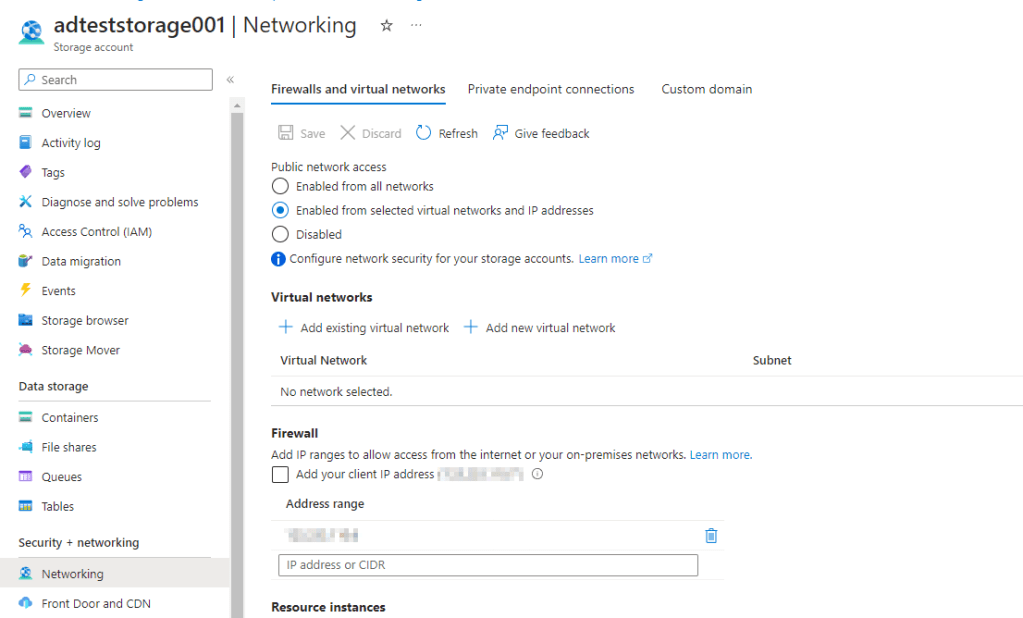
To our surprise, the client could not access the storage account and received the following error:This storage account's 'Firewalls and virtual networks' settings may be blocking access to storage services. Try adding your client IP address ('<client-ip>') to the firewall exceptions, or by allowing access from 'all networks' instead of 'selected networks'.
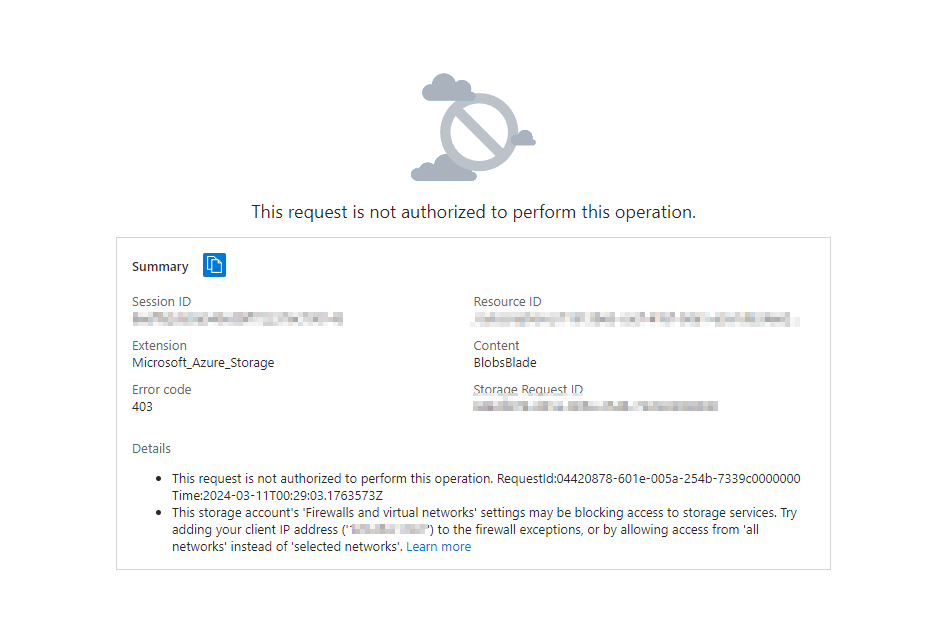
This was particularly puzzling as I had tested the same scenario on one of our own Azure VMs and it worked without any issues. After some troubleshooting we found the root cause. The error comes from the Azure Virtual Machine and the Storage Account being deployed into the same region.
When Azure services are deployed in the same region, they use Azure Private IP addresses for communication. This means that you can’t restrict access to specific Azure services based on their public outbound IP address.
To overcome this, you need to add a network rule to allow access from a specific subnet (rather than an IP range).
This can simply be done by going to the Networking tab in your Storage Account, and selecting Add Existing Virtual Network and then following the prompts to add your required VNet/Subnet access to the Storage Account.

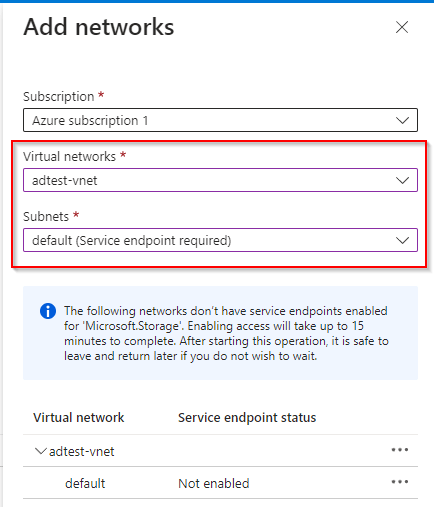
Our case was different however, as the Virtual Network we wanted to allow access from was not in the same Tenant as our Storage Account. This cannot be done via the portal as it does not show subnets in other Microsoft Entra Tenants, so you can use Powershell or the Azure CLI to accomplish this. Example below:
- Enable a Service Endpoint for Azure Storage on an existing Virtual Network and Subnet:
az network vnet subnet update --resource-group "myresourcegroup" --vnet-name "myvnet" --name "mysubnet" --service-endpoints "Microsoft.Storage.Global" - Add a network rule for a Virtual Network and Subnet:
az storage account network-rule add --resource-group "myresourcegroup" --account-name "mystorageaccount" --subnet $subnetid
The subnetid value needs to be a fully qualified Subnet Id in the form:/subscriptions/<subscription-ID>/resourceGroups/<resourceGroup-Name>/providers/Microsoft.Network/virtualNetworks/<vNet-name>/subnets/<subnet-name>
This can be retrieved from the portal, or generated via the following command:subnetid=$(az network vnet subnet show --resource-group "myresourcegroup" --vnet-name "myvnet" --name "mysubnet" --query id --output tsv)
With these steps, your Virtual Machine should now be able to access your storage account, allowing same-region requests.
Conclusion:
While IP firewall whitelisting is a powerful security feature in Azure, it can inadvertently not work for specific scenarios. By understanding how Azure services communicate with each other and leveraging VNet rules, you can maintain your security posture while ensuring smooth communication between your Azure resources.

 Alex D'Antico Tech
Leave a comment